Kellye and Aaron’s New Place

We closed on our new house yesterday at 4pm. We have already torn out carpet, begun removing baseboards and made many trips to the hardware store. We don’t intend to move in until late next week. We are laying new downstairs flooring, painting, and cleaning. We have carpet installers, appliances and miscellaneous servicemen scheduled all through the week. After move-in, we plan to refinish cabinets, bathrooms, and install storage built-ins. I was so excited to rip up the carpet I almost forgot to take before pictures, i’ll post them later.

Renovation Ideas from Pinterest

I am now an avid pinterest user and have found many great ideas. Here are a few that I’m determined to use in our next home.

We are a week away from closing, and I have been trying to plan out as much of the renovations as possible. We’ve decided on many of the flooring and paint colors, but aren’t buying anything until we have the keys in hand. In this home, the kitchen is open to the family room, which has a fireplace flush with the wall. I would like to build in some storage and also place the tv on this wall, but was reluctant to hang it ovet the fireplace. Much like the picture below, the fireplace is smaller than the tv. I like the look of these built-ins, which give the appearance of a recessed fireplace. Most fireplaces with built-ins have an interior chimney, leaving space to create built-ins flush with the front of the fireplace. I like the way that the fireplace below has tile extending past the built-ins, since it is close to the ground.

I may or may not have a mantle, as I am considering tiling the fireplace to the ceiling, like in this photo:

Despite never building a … well, much of anything before, I intend to not only build out the fireplace, but also the dividing walls between the living room and dining room. Three foot walls on either side create a 7 foot opening, in which i would like bookcases facing each other like these:

On the dining room side, I would like small serving counters and storage. On the living room side, I would like laptop desks with storage, like this:

There’s no actual pantry in the kitchen, just a pantry cabinet next to the refridgerator. To get the most use out of the space, I am going to build or buy a drawer system, like this one:

It’s so easy to search for ideas that it’s hard to resist incorporating them all. Another great site to check for inspiration is houzz. A lot of the home images from Pinterest originate from that website. There are thousands of examples for home design and renovation, and are searchable by keywords. You can create idea books as well, which helps to organize your favorites.

Summer Break

I unintentionally took a summer break from reading. It was nice. But summer’s just about over, so now it’s time to get back to it. Here are a few of the things I intend to check out tomorrow:

maybe not this exact book, but something very similar. I intend to do a few built-ins in the next house since it’s a little smaller than the last.

I’m rather certain that the “in 24 hours” part is a farce, given what I know about Objective-C.

Saw this one in a book store a couple months ago but was too cheap to buy it.

Same story as above, but I might just get this one on Amazon.

A Bit Distracted

Since the last post:

I stopped programming

we sold our house,

moved all our stuff into storage,

moved in to my old bedroom at the parents house (yes, both of us),

bought all sorts of fun things,

played a lot of Kinect and Mod Nation Racers on PSVita,

helped my mom move her classroom

got hooked on Doctor Who,

went to the gym a lot,

started using Pinterest,

crocheted a blanket for a friend,

and forgot about this blog.

My husband started a blog for his work and I suddenly remembered I have some of those! And as soon as I have something worth posting about, I’ll do just that.

Customize It: Part 2

So far, I’ve only made one customization that involves CSS, which I wrote about in the previous post. Now it’s time to show some of the many tweaks you can make with just a little added CSS.

Shadows:
The shadows, or shading, around different elements of your blog can add depth and grab attention. Shadows can make elements of your page pop out or sink in. This is the code you’ll need, shown here with no values:

  
-moz-box-shadow: 0 0 0 rgba(0, 0, 0, 0);
-webkit-box-shadow: 0 0 0 rgba(0, 0, 0, 0);
-goog-ms-box-shadow: 0 0 0 rgba(0, 0, 0, 0);
box-shadow: 0 0 0 rgba(0, 0, 0, 0);

To get the desired effect, I have to add the size of the shadow in pixels (px) in the first set of zeros, the color in rgb values the next three zeros, and the opacity as a decimal in the last zero.
-moz-box-shadow: 20px 5px 10px rgba(0, 0, 0, .5);
-webkit-box-shadow: 20px 5px 10px rgba(0, 0, 0, .5);
-goog-ms-box-shadow: 20px 5px 10px rgba(0, 0, 0, .5);
box-shadow: 20px 5px 10px rgba(0, 0, 0, .5);

Going in order, “20px” is the size of the shadow on the right, 5px is the size of the shadow on the bottom, 10px is how blurry the edge is (0px makes a hard, sharp edge on the shadow). The next three zeros determine the color, but I wanted it to stay gray, so I left them all at zero. Because they indicate the values of red, green, and blue respectively, I could make a purple shadow with “rgba(128, 0, 128, .5)“. You can find these values for any color in most image editing programs, but if you aren’t too particular, look here. The last value must be a decimal for the opacity of your shadow. “0” would mean you can’t see it, 1 would mean it’s a completely solid color. I went in the middle with “.5”
Because Blogger will show the changes as you make them, you will see how these values affect your page.
Now for a bit of magic: if you would rather have an inset shadow, all you have to do is add “inset” after each colon.
-moz-box-shadow: inset 5px 5px 5px rgba(0, 0, 0, .5);
-webkit-box-shadow: inset 5px 5px 5px rgba(0, 0, 0, .5);
-goog-ms-box-shadow: inset 5px 5px 5px rgba(0, 0, 0, .5);
box-shadow: inset 5px 5px 5px rgba(0, 0, 0, .5);
 
I changed the shadow to be smaller, since a big inset shadow overlaps the text.
And there you have it! Shade away!
Borders and Corners:
Though some page elements allow you to change the borders of different page elements, the option is not always there. Similarly, some designs have rounded corners and others don’t. Here’s how to change both

The sidebar content in the design I picked for the test blog did not have a border around it or a background. I added a dashed border, rounded corners, and a transparent background to the stuff in the sidebars like this:

aside{ 
border: 2px dashed grey;
moz-border-radius: 8px;
webkit-border-radius: 8px;
border-radius: 8px;
goog-ms-border-radius: 8px;
background: rgba(204, 153, 204, .5);
}
The first statement, “border:” is of course the border. 2px is the thickness of the border. “Dashed” is the style of the border. (Solid, dotted, dashed, and double are among your options.) “Grey” is the color. If you want a different color, you can use words, hexadecimal or rgb colors. The next four statements are about the rounded corner. It’s the same rule stated for each type of browser. The bigger the number, the more rounded the corner. The last value is for the background color. I used rgba so I could have a transparent color, just like the shadows above.
Another quick note, you can use multiple border styles together, or just put border on certain sides. Read more about that on w3schools.

Hover

Hover is usually associated with links, but it can be used on any element. I’m going to use it for rollover image effects in my sidebars. Here’s the CSS I used on the side bar elements to make them show a clip from the background when you hover over them:

Simple enough! I edited this image on my own, added it to another post in my blog, then linked to that image on the post. You can link to any uploaded picture, just make sure that it is yours or free for public use. 


Customize It: Part 1

I’ve been knee deep in a sea of HTML and CSS lately, trying to learn the ins and outs. After making practice pages on my computer, I thought that I would try to create my own blogger theme from scratch. After looking into it, it seems completely unnecessary. You can edit anything on the page by adding CSS in the Template Designer. In this post I’ll give the steps, in the next post I’ll show all the CSS changes I made on my test blog.

1. Pick the design that is the closest to what you want.
By default, you start out with the first option in the “simple” category. If you like this one, then great! There are a good number of options to pick from, but I admit they look mostly the same. Choose the design that is the closest to what you want. Try not to focus too much on the colors or images, since you can change most of those in the customization options offered in the template designer. I picked the picture window template.

2. Customize using options in Blogger
Choose the Background, Widths, and Layout for your blog. Finally, use the options available under the advanced tab to change colors and fonts. Even though I made a lot of changes, there were still some things I didn’t like. For example, I wanted the header to have a picture instead of a solid color background. It’s possible to change most anything with CSS, as long as you know the name of what you want to change.

3. Get the CSS from your blog
This step can be skipped if you are familiar with CSS. Apply any changes you’ve made, view your blog and right-click on the page. Select “View Page Sorce”, select all text and save it in a text editor (such as Notepad or jEdit, but NOT MS Word). The text will have a mix of markup and code, but you’re looking for just CSS. Scroll until you see this:

/*-----------------------------------------------
Blogger Template Style
Name: Picture Window
Designer: Josh Peterson
URL: www.noaesthetic.com
----------------------------------------------- */

That’s where the template style starts. If you picked a different template, it will say something different but look basically the same. Delete everything above this. As you scroll down, you will see a lot of named variables next:


<Variable name="body.font" description="Font" type="font"
default="normal normal 15px Arial, Tahoma, Helvetica, FreeSans, sans-serif"/>

Group>


Group>
 
You don’t need those either. The next part is the actual CSS. It looks like this:
/* Content
----------------------------------------------- */
body {
font: normal normal 15px Cambria;
color: #114499;
}
html body .region-inner {
min-width: 0;
max-width: 100%;
width: auto;
}
You can tell it’s CSS by the lines with only “}” on them. Keep scrolling down until the CSS ends and you see a bunch of listed divs. They look like this:

<div class='body-fauxcolumns'>
<div class='fauxcolumn-outer body-fauxcolumn-outer'>
<div class='cap-top'>
<div class='cap-left'>div>
<div class='cap-right'>div>
div>
<div class='fauxborder-left'>
<div class='fauxborder-right'>div>
<div class='fauxcolumn-inner'>
div>
 Everything from here on out you don’t need. 
4. Inspect your blog 
Go to the browser’s menu, select “developer tools” and then “inspect”. The page should go dark, and as you roll your mouse across the page, it will highlight the different elements. Since I want to change the header background, I rolled over the header until the entire thing was selected. 

Be certain to get the entire section you want to change highlighted. Elements are layered over one another, so selecting the wrong one is easy. when you have it highlighted, it will show a text box on top with its name. In my case, the name is “div#header-inner”.
5. Search the text file
Use “find” to search for the element you want to change. Copy the name and everything inside the brackets, as well as the brackets themselves. If more than one name is mentioned before the brackets, then you would be better off typing up the CSS instead of copying it. Multiple names means the rules are affecting multiple sections of your blog. Unless you want to change all of those sections, you’ll have to write up the CSS yourself. 
6. Add the CSS to your blog
In the template designer, under the advanced option, scroll down and click the “Add CSS” option. You’ll see a textbox to the right, which is where you add your CSS. Either paste or write your new rules here. You should see the page changing in the window below. Because I wanted to change the background of the header to match the background of the blog, this is what I put in:
#header-inner{
} 

 The link references the same location where the background is stored. Any picture will have to be referenced in this way, but only use pictures that are yours or free for public use. 

Repeat the last three steps to change anything that you want on your blog. I’ll give a lot of examples of what you can change in the next post.
 

Melted Crayon Juice

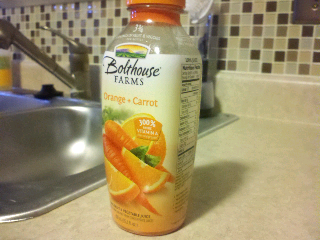
I buy Bolthouse Juice all the time, because washing a juicer sucks. The green juice is our house favorite, but its fun to try different varieties from time to time. The one I tried today was called Orange + Carrot.
I know that it may seem silly to say this, but I always felt that I knew what the color orange tasked like. Like an orange, the fruit. But I was wrong. An orange tastes like an orange. A carrot tastes like a carrot. Somehow together, in this juice, they taste like the color orange.  I mean that in a great way; the way you dream a melted orange crayon would taste in magical childhood land (if you ever dreamed such things). And I don’t think it’s just because the two foods in it are orange. Adding a sweet potato would certainly ruin it.

Upstairs Bath: Start to Finish

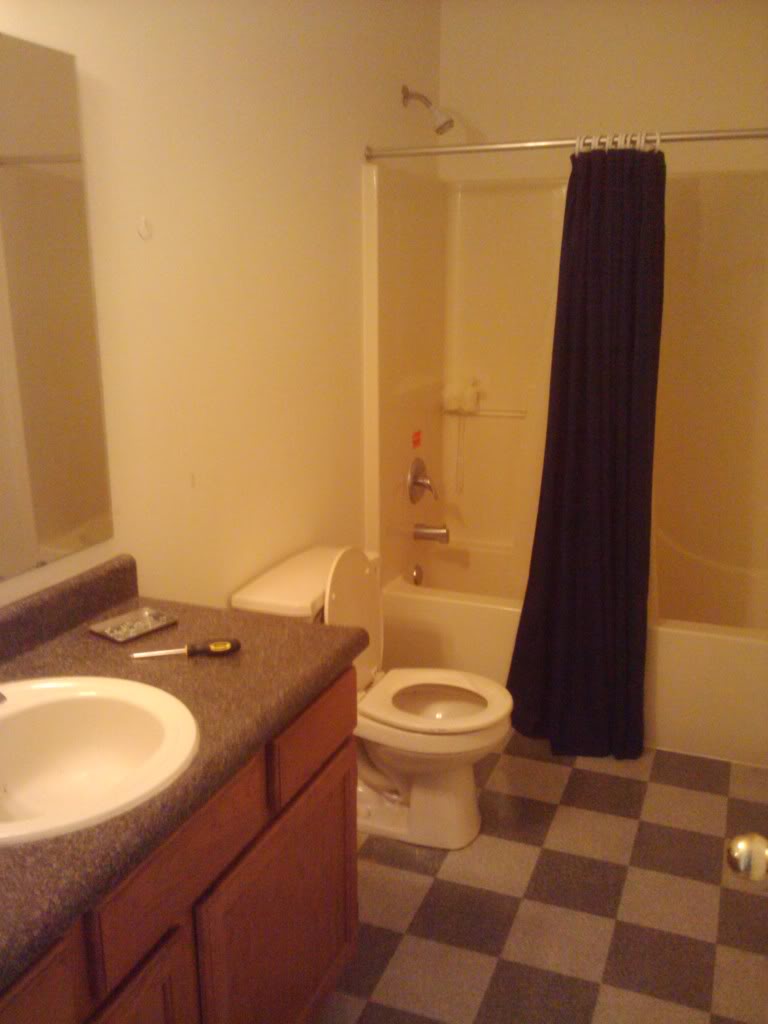
 Considering the homes we saw, this bathroom was in great condition.

This is right before we painted. The only thing we did was remove the towel bar and add Aaron’s old shower curtain from his apartment.

After we painted, we changed the shower curtain to one I had from college, hung a poster and added some rugs. The shower curtain rod is also new. The box from the new faucet is there on the counter. We replaced the light too, but you can’t see it here.

We changed the face places and the mirror too. The mirror was a little too skinny, so it was swapped with the one in the master bath later on.

We changed a lot of details to get to the finished bathroom:

The mirror was swapped, the poster was moved downstairs and a new shelf was added. The shower curtain came from Target. The floor mats are now gray instead of blue. I painted the vanity with the same process from the kitchen cabinets, the counter top was bought on clearance from Menards, and the tiles from the back splash came from Lowes. The new towel rack, which you can barely see, came from Ikea.

The Master Bath: Start to Finish

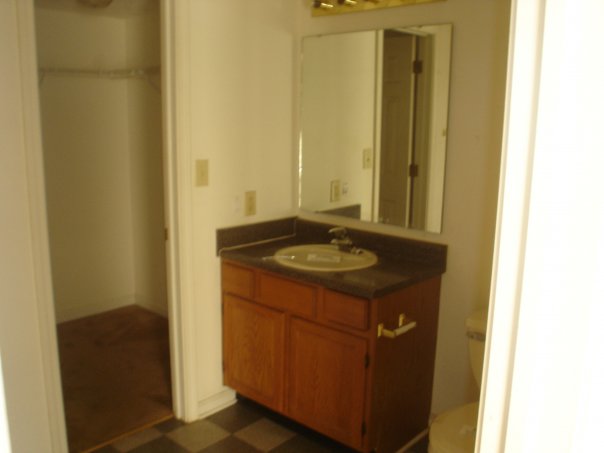
The kitchen had the biggest transformation, but the bathrooms were in a close second. Everything was functional, but builder grade. The laminate countertop was a little faded, and the lights were the exposed bulb style common in home construction in the ’90s. The first thing done was paint, but for reasons I forgot we never finished painting around the cabinet and mirror. When we switched the mirror and light, we didn’t paint right away. The outlines are very obvious in the picture below:

Next, we installed clearance counter tops from Menards and tile and repainted the entire bathroom, including the vanity. We didn’t intend to replace the counter tops because they were in decent condition, but we chanced upon matching granite tops in the sizes we needed for both our bathrooms. They were about the same price as laminate tops, so we couldn’t resist upgrading. We also installed a new faucet, which surprisingly has a pull out sprayer faucet that you usually only see in kitchens. That all happened in a couple of days, so I only have a picture of when we finished.